Import, export & sharing
Everything in EduBeam happens in your browser. Nothing is uploaded to a server: a share link literally contains the model.
Save a project
☰ → Save project or Ctrl+S downloads project.json. It holds the nodes, elements, materials, cross sections (with polygon shapes), loads, dimension lines and the app version that wrote it. Rename the file freely.
Open a project
- ☰ → Open project or Ctrl+O, then pick a
.jsonfile, or - drag the file anywhere onto the app window.
Opening replaces the current model, including materials and cross sections. The model you had is not lost: Ctrl+Z brings it back, and it is kept in Recent structures. A file that is not an EduBeam project is refused with a message, and your model stays as it was.
Project files from every earlier version of EduBeam open in the current one.
Share a link
Share model (in the app bar or the ☰ menu) opens the Share model via URL dialog:
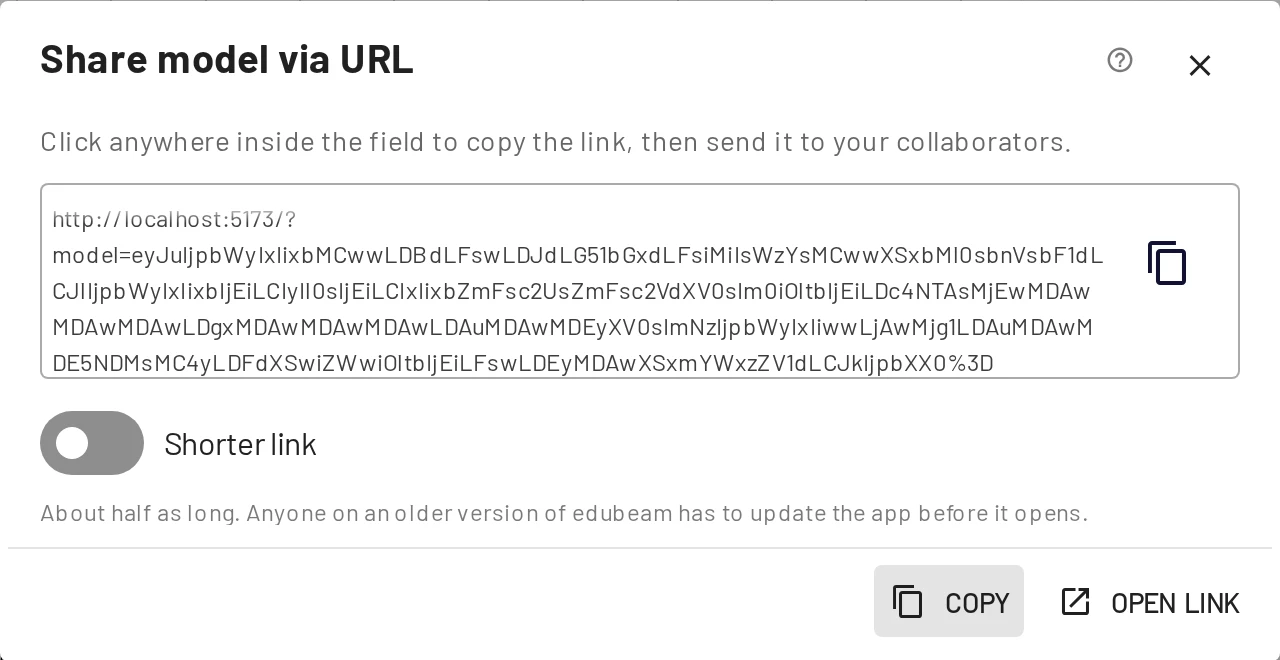
- Copy copies the link to the clipboard. Clicking inside the field does the same.
- Open link opens it in a new tab, so you can check what the recipient will see.
- Share via system dialog hands the link to your device's share sheet, where the browser supports it.
- Shorter link writes the same model in about half the characters. A copy of EduBeam that hasn't updated since October 2026 can't read it until it does, so leave it off when a link has to open everywhere right away.
The link has the form https://run.edubeam.app/?model=… and encodes the entire model. Whoever opens it gets their own copy to edit; edits are not synchronised back, so send a new link when the model changes. Very large models make very long links; for those, share the JSON file instead.
When someone opens a link, their own previous model goes to Recent structures, and a message tells them where to find it.
Links from older versions keep working: a link in last year's lecture notes opens the same model today.
Export an image
☰ → Export image or Ctrl+P opens the image export.
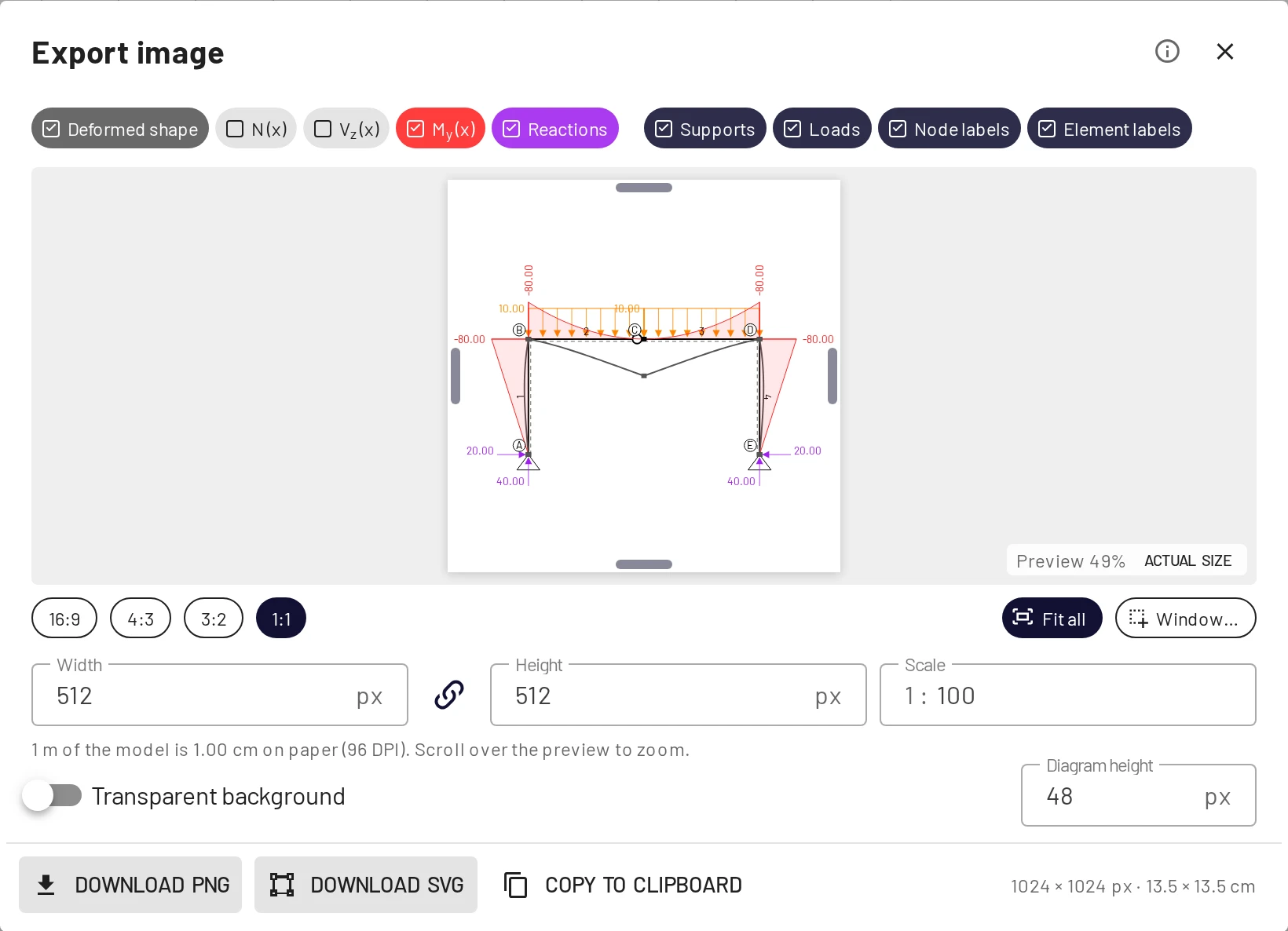
- Layers: the chips at the top choose what is drawn, independently of the viewer: deformed shape, N, V, M, reactions, supports, loads, node and element labels.
- Frame: pick an aspect ratio (16:9, 4:3, 3:2, 1:1), Fit all, or Window… to drag a rectangle over the drawing. You can also drag the edges of the preview.
- Size: width and height in pixels, or a Scale such as 1 : 50 for a drawing to scale on paper. Diagram height sets the size of the result diagrams in the image. Transparent background leaves out the white.
- Download PNG, Download SVG or Copy to clipboard.
SVG stays sharp at any size and works in Word, Inkscape and LaTeX on Overleaf, which makes it the best choice for reports and theses.
Export the results
Results → Export CSV downloads both result tables, including the reactions, and Copy puts them on the clipboard for a spreadsheet. See Export CSV and Copy.
Recent structures
☰ → Recent structures keeps the last 10 models that were cleared or replaced by a link, a file, an example or the first-beam task. Each shows a thumbnail, why it was replaced, and its size. Restore brings one back; the model you had then goes into the list in turn, and Ctrl+Z undoes the restore.
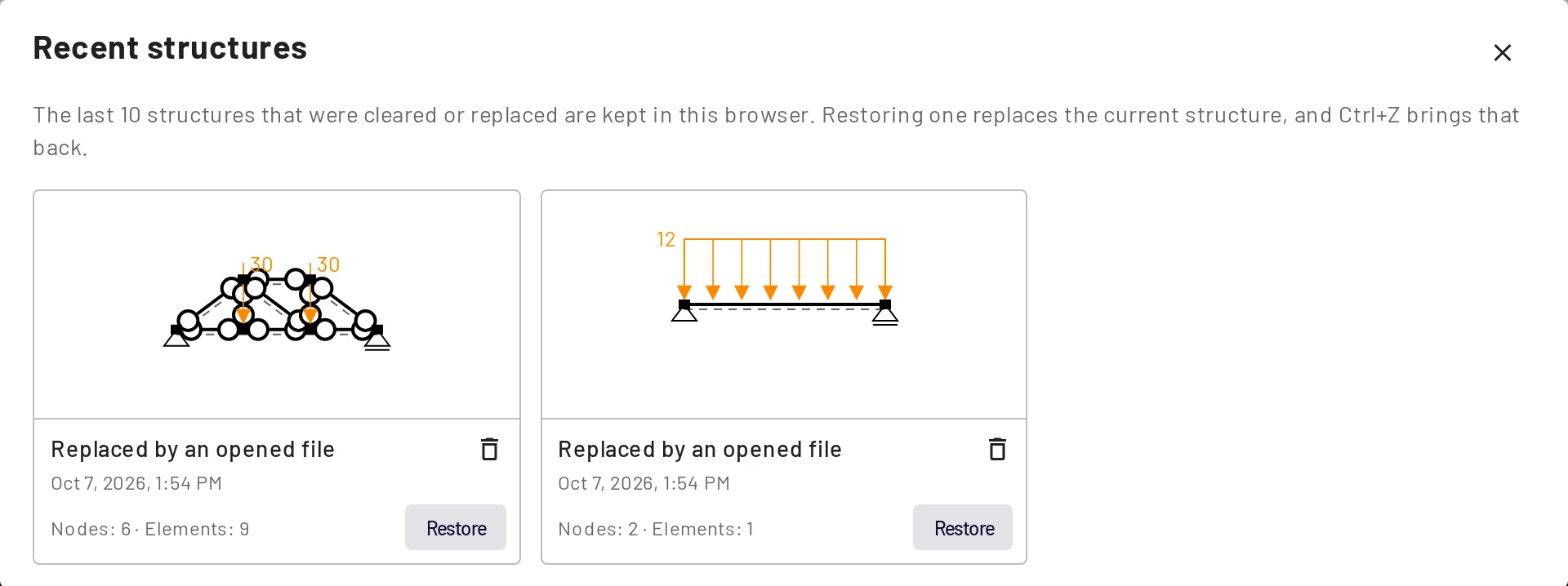
The list is stored in this browser only.
Examples
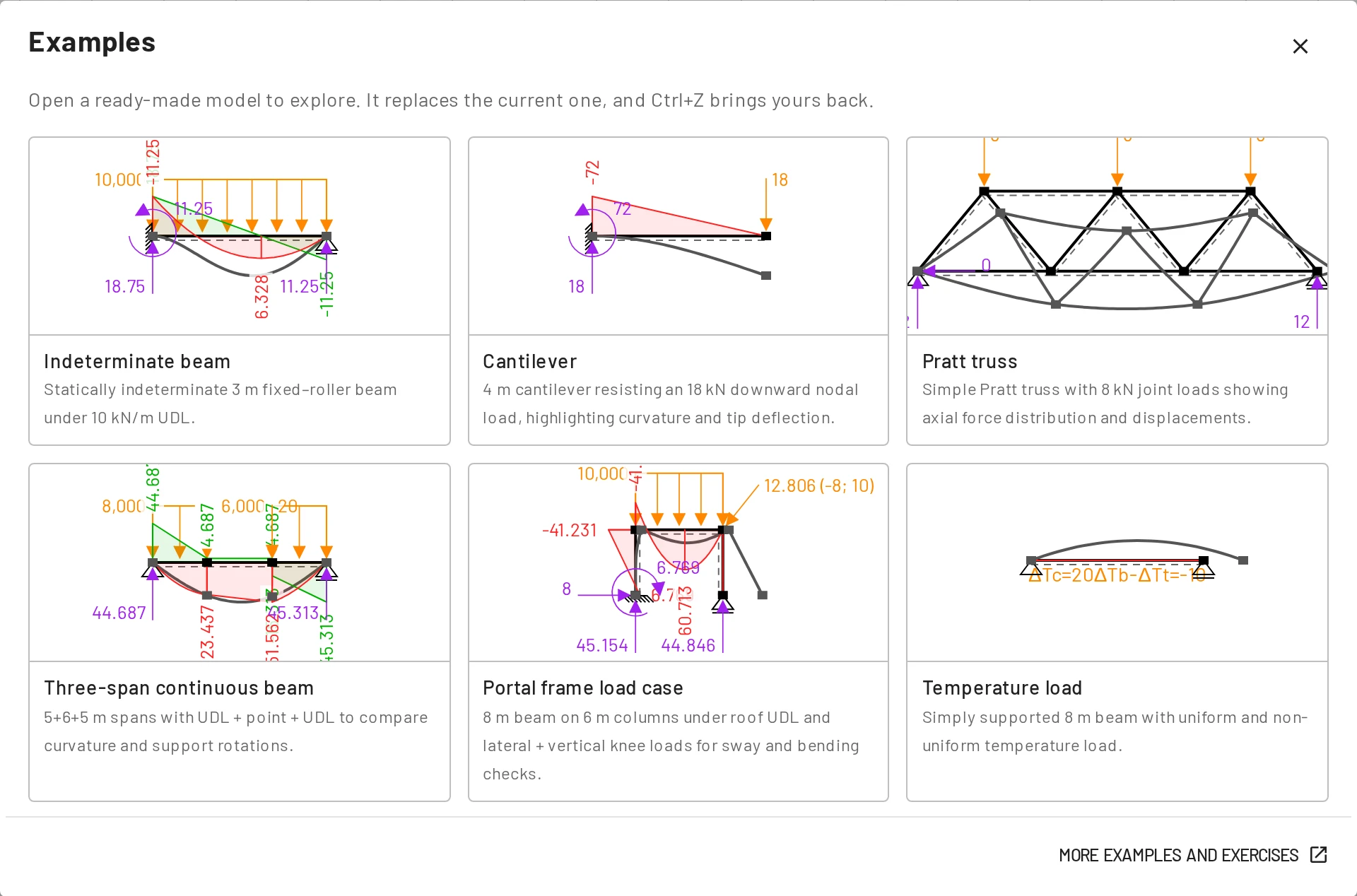
☰ → Examples opens a gallery of ready-made teaching models. Opening one replaces your model, and Ctrl+Z brings yours back. The same models, with exercises, are on the Examples page of this guide.
Embed a viewer
Add &viewer=1 to a share link to open the model in viewer mode. The app bar, the bottom bar, the tabs, undo and redo, the grid chips and the axis indicator are hidden, leaving the canvas, the fit and center buttons and the display options. Put that URL in an <iframe> to embed a live, zoomable model in lecture notes or a web page:
<iframe src="https://run.edubeam.app/?viewer=1&model=…" width="100%" height="400"></iframe>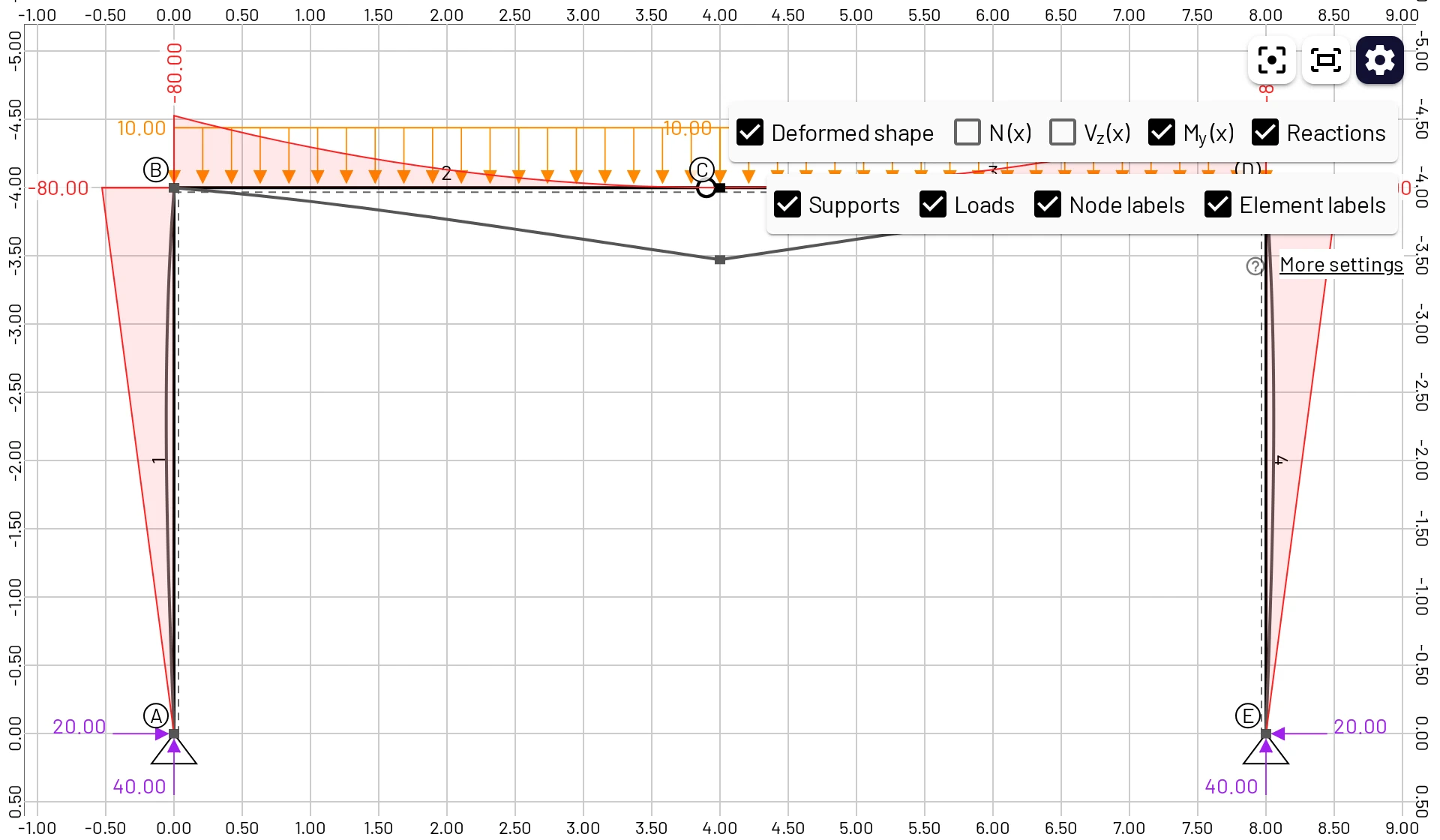
Viewer mode is for looking, but it is not locked: visitors can still drag nodes and switch diagrams. Opening a viewer link also replaces the visitor's own model in that browser (it goes to Recent structures), just like a normal link.
URL parameters
| Parameter | Effect |
|---|---|
model=<data> | Load the encoded model and fit it to the screen. |
viewer=1 | Viewer mode (see above). |
lang=<code> | Switch the interface language: en, cs, de, fr, es, pt, pl, cn, th, uk, ru, tr, hi, vi, it, id, ja, ko. |
panel=examples | Open the examples gallery straight away. |
After reading them, EduBeam removes the parameters from the address bar.
Automatic persistence
The current model and your settings are saved to the browser's local storage after every change and restored when you come back, even after closing the browser. This is a convenience, not a backup: it belongs to one browser profile on one device, and clearing the site data removes it. Save important work as a project file.
Project file format
project.json is plain, readable JSON:
{
  "edubeam": true,
  "version": "1.3.1",
  "domain": {
    "materials": [{ "label": "1", "e": 210000000000, "g": 81000000000, "alpha": 0.000012, "d": 7850 }],
    "crossSections": [{ "label": "1", "a": 0.00285, "iy": 1.943e-5, "h": 0.2, "k": 1 }],
    "nodes": [
      { "label": "1", "coords": [0, 0, 0], "bcs": [0, 2] },
      { "label": "2", "coords": [6, 0, 0], "bcs": [2] }
    ],
    "elements": [{ "label": "1", "nodes": ["1", "2"], "mat": "1", "cs": "1", "hinges": [false, false] }],
    "loadCases": [
      {
        "label": "1",
        "nodalLoads": [],
        "elementLoads": [{ "type": "udl", "target": "1", "lcs": false, "values": [0, 12000] }],
        "prescribedBC": []
      }
    ]
  },
  "dimensions": []
}
This is the Quick start beam. All values are in SI units (m, N, Pa, rad), whatever the display units. Coordinates are [x, y, z], with y always 0. Boundary conditions and load components use DOF ids 0 = Dx, 2 = Dz, 4 = Ry.
Element load type | Values |
|---|---|
udl | values: [fx, fz] in N/m |
trapezoidal | startValues: [f1x, f1z], endValues: [f2x, f2z] in N/m, local axes |
concentrated | values: [Fx, Fz, My, a] in N, N·m and m from the start node |
temperature | values: [ΔTc, ΔTb, ΔTt] in K; the gradient is ΔTb − ΔTt |
Nodal loads are { "target": "2", "values": { "0": Fx, "2": Fz, "4": My } } and prescribed displacements { "target": "2", "prescribedValues": { "0": Dx, "2": Dz, "4": Ry } }; give all three components. Files written by the app also carry a date, a commit, a nodal lcs and polygon shapes.
Because the format is simple, you can generate models with a script or a spreadsheet and open them with Open project.