Troubleshooting
When a model can't be solved, EduBeam says why in a message at the top left of the viewer, and Show details lists every problem in full. Pick the title of the dialog you saw: each message below says what it means and how to fix it.
Not ready to solve yet
A blue Needs supports chip. Nothing is wrong: the structure just isn't held in place yet.
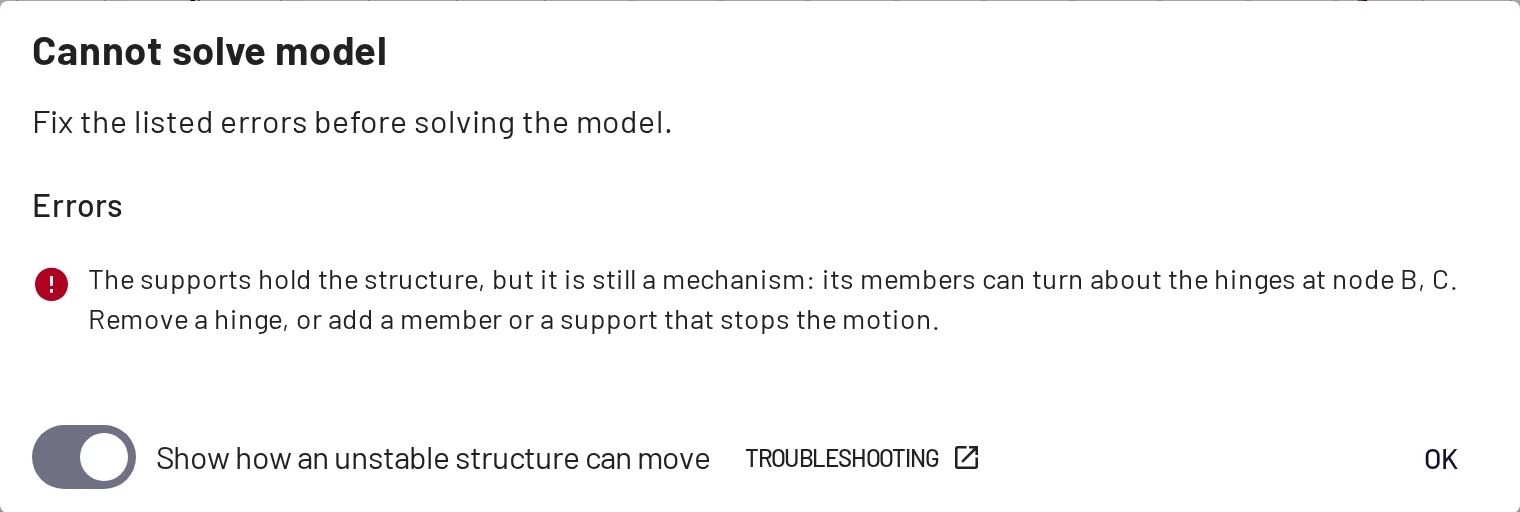
Cannot solve model
A red message. Supports that don't hold, hinges that make a mechanism, an element of zero length.
Model warnings
A yellow message. The model is solved, but something is probably not what you meant.
Results look wrong
Loads acting upward, deflections off by powers of ten, a sign that seems flipped.
Messages
What the colours mean
| You see | It means |
|---|---|
| A blue Needs supports chip | The model is unfinished. Add supports. Point at the chip to see, as a dashed outline, how the structure can still move. |
| A red message | Something stops the solve. It names the problem, or reads Errors in the model: n when there are several. The nodes involved are circled on the drawing. |
| A yellow message | Warnings. The model was solved anyway. With several, it reads Warnings in the model: n. |
| No materials defined. / No cross sections defined. | Elements need both. Add one with the Add new button next to the message. |
Show details opens the dialog, titled Not ready to solve yet, Cannot solve model or Model warnings. Its switch shows or hides how the structure can move, and its Troubleshooting link leads here.
On the drawing:
- The ✕ on a red message folds it into a small Cannot solve model chip, to make room on a small screen. Click the chip to unfold it.
- The eye button on a red message shows or hides the dashed outline of the motion. Settings → Viewer settings → Model checks turns the outline, and its animation, off for good.
- The ✕ on a yellow message hides the warnings.
Still needed
The model is not wrong, only unfinished. Point at the chip for the short text; the dialog shows the long one.
| Message | Meaning and fix |
|---|---|
| The structure needs supports before it can be solved. Model needs at least 3 constrained DOFs to be stable in 2D analysis. | Fewer than three restrained directions in total. Add supports. |
| The part with nodes … needs supports. A separate part of the structure (nodes …) has fewer than 3 restrained DOFs and can move freely. | The model is in pieces and one piece floats. Connect it to the rest, or support it. |
| n parts of the structure need supports. | Several pieces float. Show details lists them. |
Errors
Something stops the solve. The red message shows the short text; the dialog the long one.
| Message | Meaning and fix |
|---|---|
| The supports do not hold the structure: it can still slide horizontally / move vertically / rotate freely / move as a rigid body. Structure has enough supports but they do not hold it: it can still … | There are enough restraints, but they are all parallel, or their lines of action meet in one point, as with three rollers on a horizontal beam. The dashed outline shows the motion; turn or move one support. |
| The part with nodes … is not held: it can still … A separate part of the structure (nodes …) has enough supports but they do not hold it: it can still … | The same, for one piece of a model that is in pieces. |
| The hinges at node … let the structure move. The supports hold the structure, but it is still a mechanism: its members can turn about the hinges at node … | The hinges let members turn against each other, as in a frame on two pinned feet with a hinge at the top of each column, or a pin-jointed square without a diagonal. Remove a hinge, or add a member or a support. |
| The structure is unstable: it moves almost without resistance. Structure is unstable: node … horizontally (Dx) … moves practically without resistance. | Nearly a mechanism, or a stiffness close to zero. The long message names the nodes and directions. Check the supports, the hinges and the values of E, A and Iy. |
| The structure is a mechanism: it can move without resistance. Structure is a mechanism: the stiffness matrix is singular. | Something can move freely that the checks above did not catch. Check that every part is held by at least three restraints and that end hinges don't leave a member free to rotate. |
| Element … has zero length: nodes … and … are at the same point. | Two nodes of one element sit on top of each other. Move one, or delete the element. |
| Element … references the same node at both ends. | Delete the element and draw it again between two different nodes. |
| Element … references missing node / material / cross section … | The object it uses was deleted, usually in a hand-edited project file. Reassign it in the Elements table. |
| Element … must reference exactly 2 nodes. | A broken element in an imported file. Delete it and draw it again. |
| Nodal load #n references missing node … Prescribed displacement #n references missing node … | Delete the load, or give it an existing node. |
| Element load #n references missing element … | Delete the load. |
| Solver failed due to an internal model inconsistency. | A generic failure. Undo the last step, or save the project and report it. |
Warnings
The model is solved anyway, but check these:
| Message | Meaning and fix |
|---|---|
| Node … is not connected to any element and is ignored by the solver. | A stray node. Delete it, or connect it. |
| Node … is supported but no element connects to it, so the support carries nothing. | A support on a stray node. |
| Nodal load #n contains invalid values. Prescribed displacement #n contains invalid values. | A component that is not a number. Edit the load. |
While editing
These open in a browser dialog as you work, and the model is left as it was:
| Message | Meaning and fix |
|---|---|
| Please add a material first. Please add a cross section first. | An element needs both. Add one in the Materials or Cross sections tab, then draw the element again. |
| Please select a material and a cross section. | The Add element dialog has an empty field. Pick both. |
| Label … is already in use. | Two nodes, elements, materials or cross sections can't share a label. Choose another. |
| Prescribed displacement already exists for this node. Please remove it first. | A node takes one prescribed displacement. Edit the one it has, or delete it first. |
Nothing is drawn
When no diagram appears, check, in this order:
Check the display options
With no message at all, the model is solved: the diagram may simply be switched off. Tick My(x), or another result, in the display options at the top right of the viewer; the ⚙ button above them shows the panel. A model without any load has zero results everywhere, so there is nothing to draw either.
Check the supports
The solver needs at least three restrained directions, and together the supports must stop the structure from sliding or turning. A beam on two rollers has only two and slides away: make one of them a pin. Three rollers in parallel, or supports whose lines of action meet in one point, don't hold it either. See Nodes & supports.
Check that the elements are connected
Two nodes at the same coordinates are still two separate nodes, and a part that touches the rest only there floats free. Delete the stray node and reconnect. When you place a node on an element, answer Connect to structure to split the element there.
Count the hinges
A frame on two pinned feet with a hinge at the top of each column, or a square of pin-jointed bars without a diagonal, is a mechanism. EduBeam circles the hinges and swings a dashed outline through the motion. See End hinges.
Look for a stiffness of zero
E, A or Iy entered as 0, or in the wrong unit, lets part of the structure move almost without resistance. EduBeam reports that as unstable.
Results look wrong
| Symptom | Likely cause |
|---|---|
| Loads act upward | Global z points down, so a positive Fz or fz acts downward; negative values point up. With the y-up axes it is the other way round. See Loads. |
| Deflection is off by powers of ten | A unit mix-up: E entered in Pa while the field expects MPa, or Iy in cm⁴ while it expects m⁴. The units chip at the bottom right of the viewer lists the units every field uses. |
| Deflection slightly larger than the textbook formula | Shear deformation of the Timoshenko beam. See Checking results by hand. |
| A sign looks wrong | Read the sign from the value, not from the side the diagram is drawn on: positive M is sagging. End forces in Element results follow the element's local axes, not the N-V-M convention. See Reading the sign. |
| A diagram is on the "wrong" side | The side is a display setting: bending moment on the tension or the compression side, N and V on either side of the dashed line. Settings → Viewer settings → Internal force diagrams. |
| Two identical columns show opposite shear signs | The sign of V follows each element's direction. Swap the nodes of one to compare them. |
Numbers like 4 · 10¹ | The scientific number format. Choose Automatic in Settings → Language & Locale → Number format. |
| Diagrams are huge or tiny | Only the drawing. Adjust Results scale in Settings → Viewer settings. |
| A load in local axes points the wrong way | An element's local x runs from its initial to its end node. Swap the nodes, or flip the sign. |
| A load on an inclined member is off | LCS is ticked by default, so fz acts perpendicular to the member. Untick it for a vertical load. |
| A temperature load does nothing | A statically determinate structure deforms freely under temperature, without internal forces. For deformation, check that α is not 0 and, for a gradient, that the section height is set. |
Files and links
| Symptom | Fix |
|---|---|
| Could not import the file. Please check the file format. | The file is neither an EduBeam project nor a desktop EduBeam session. Your model is unchanged. |
| This EduBeam session has several load cases, but only one can be open at a time. | A desktop EduBeam session with several load cases: EduBeam opens the first and names the ones it left out. |
| A share link opens your old model instead | The link was cut off or changed, for example by an email client wrapping it. EduBeam ignores a link it can't read and keeps your model. Copy the whole link again. |
| A shorter link doesn't open for a colleague | Their copy of EduBeam is older than version 1.3.2. They should reload the app, or you can share with Shorter link switched off. See Share a link. |
Interface issues
| Symptom | Fix |
|---|---|
| Shortcuts do nothing | Click the drawing first: single keys are ignored while a text field has focus. On a Mac, use Cmd for Ctrl. See Keyboard, mouse & touch. |
| Delete does nothing on a Mac | The key labelled delete on a Mac keyboard is Backspace. Press Fn+Delete. |
| Cannot pan | Panning uses the middle or right mouse button; choose which in Settings → Controls & Shortcuts. On a trackpad, click and drag with two fingers. On a touch screen, drag with one finger. |
| My model disappeared | Opening a link, a file or an example, and clearing, keep the old model: ☰ → Recent structures, or Ctrl+Z. A link says so at the bottom of the screen as it opens: Opened a shared structure. Your previous one is kept in Recent structures., with a Show button. |
| Wrong language | Settings → Language & Locale, or add ?lang=en to the address. |
| Settings changes do not stick | Local storage is blocked, for example in a private window or a strict privacy mode. Settings, the saved model and Recent structures all need it. |
Reporting a bug
Open a GitHub issue with your browser and operating system, what you did and what you expected. Most useful of all is a share link or the project file that shows the problem.