Units & settings
There are three ways into the settings:
- the Settings tab above the viewer, which shows them full-size;
- the units chip at the bottom right of the viewer, which opens them on Language & Locale;
- More settings under the display options, which opens them on Viewer settings.
Settings are stored in your browser and survive reloads. Reset settings restores the viewer defaults, the number format, the axes, the pan button and the units of your region; the language is kept.
Language & Locale
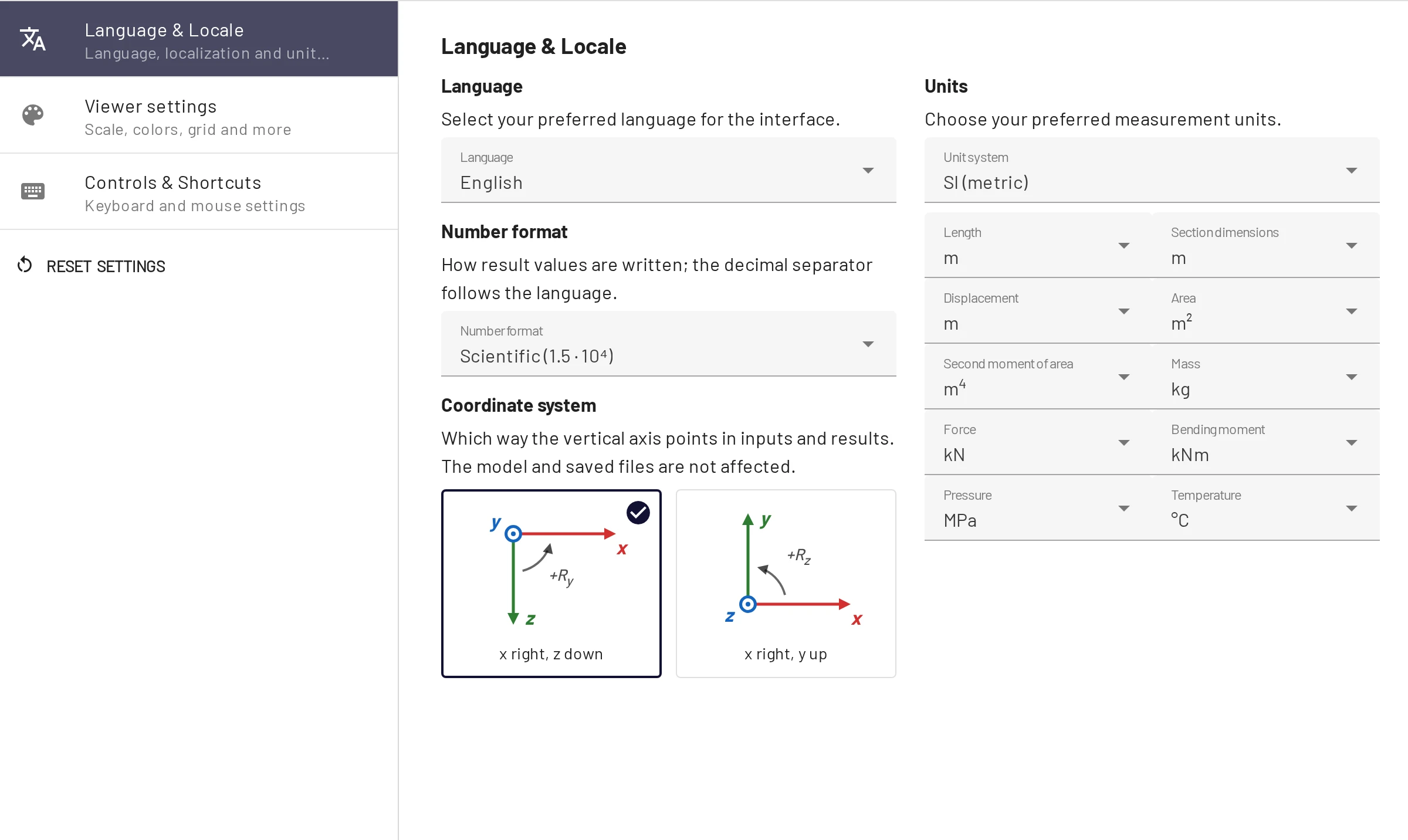
Language. 12 interface languages. You can also open the app with ?lang=<code>: en, cs, de, fr, es, pt, pl, cn, th, uk, ru, tr.
Number format. How result values are written: Automatic, Scientific (default) or Engineering. See Number format.
Coordinate system. x right, z down (default) or x right, y up. The y-up option flips the sign of vertical values and support angles and renames the axes in every input, table, tooltip and export. The model and saved files do not change. See Y-up axes.
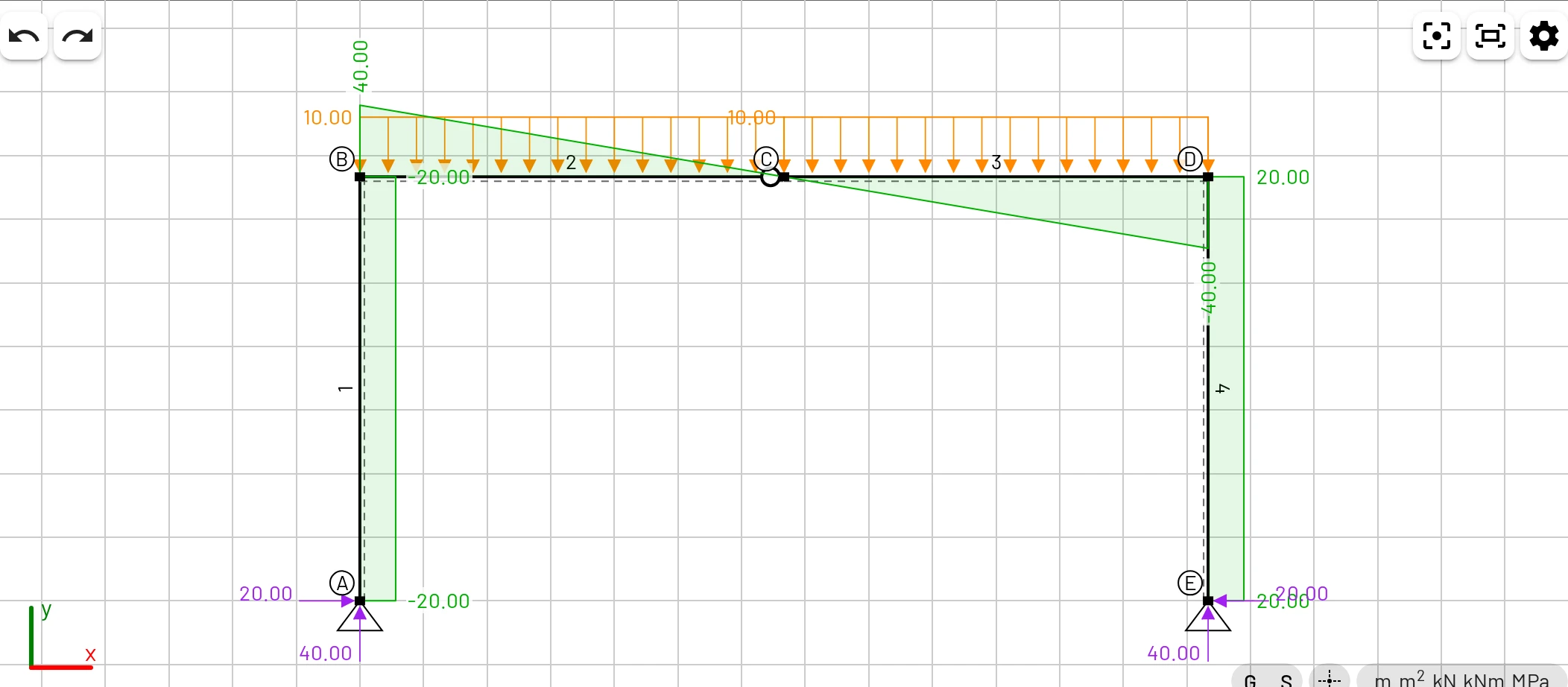
Unit system. SI (metric) or US customary (imperial) sets every unit below in one step. Changing any single unit afterwards shows the system as Custom. On a first visit you choose in the welcome dialog; before that, EduBeam guesses US customary only if the browser is set to a US locale and the computer is in a US time zone.
Units. Each quantity has its own unit. Inputs, tables, tooltips and diagram labels all use the selected unit, and changing a unit converts what is displayed. The model itself is stored in SI, so nothing is lost by switching back and forth, and a shared link opens the same model in any units.
| Quantity | Choices | SI | US customary |
|---|---|---|---|
| Length (geometry) | m, cm, mm, ft, in | m | ft |
| Section dimensions | m, cm, mm, ft, in | m | in |
| Displacement | m, cm, mm, ft, in | m | in |
| Area | m², cm², mm², ft², in² | m² | in² |
| Second moment of area | m⁴, cm⁴, mm⁴, ft⁴, in⁴ | m⁴ | in⁴ |
| Mass | kg, lb | kg | lb |
| Force | N, kN, MN, kgf, Tonf, lbf, kip | kN | kip |
| Bending moment | Nmm, Nm, kNm, MNm, Tonf·m, lbf·in, lbf·ft, kip·in, kip·ft | kNm | kip·ft |
| Pressure (E, G) | Pa, kPa, MPa, GPa, ksc, psi, ksi, psf, ksf | MPa | ksi |
| Temperature | °C, °F | °C | °F |
Line loads use force / length of the selected units (kN/m in SI, kip/ft in US customary), and density uses mass / length³. The coefficient of thermal expansion follows the temperature unit (1/K or 1/°F). Temperature loads are temperature changes, so 10 °C is 18 °F. Rotations are always in radians.
Tonf is the metric tonne-force (1000 kgf), not the US short ton. US customary units are converted with their exact definitions (1 ft = 0.3048 m, 1 kip = 4448.2216 N). In feet, type decimal values such as 5.5; the rulers and the crosshair read in feet and inches (5′-6″).
Viewer settings
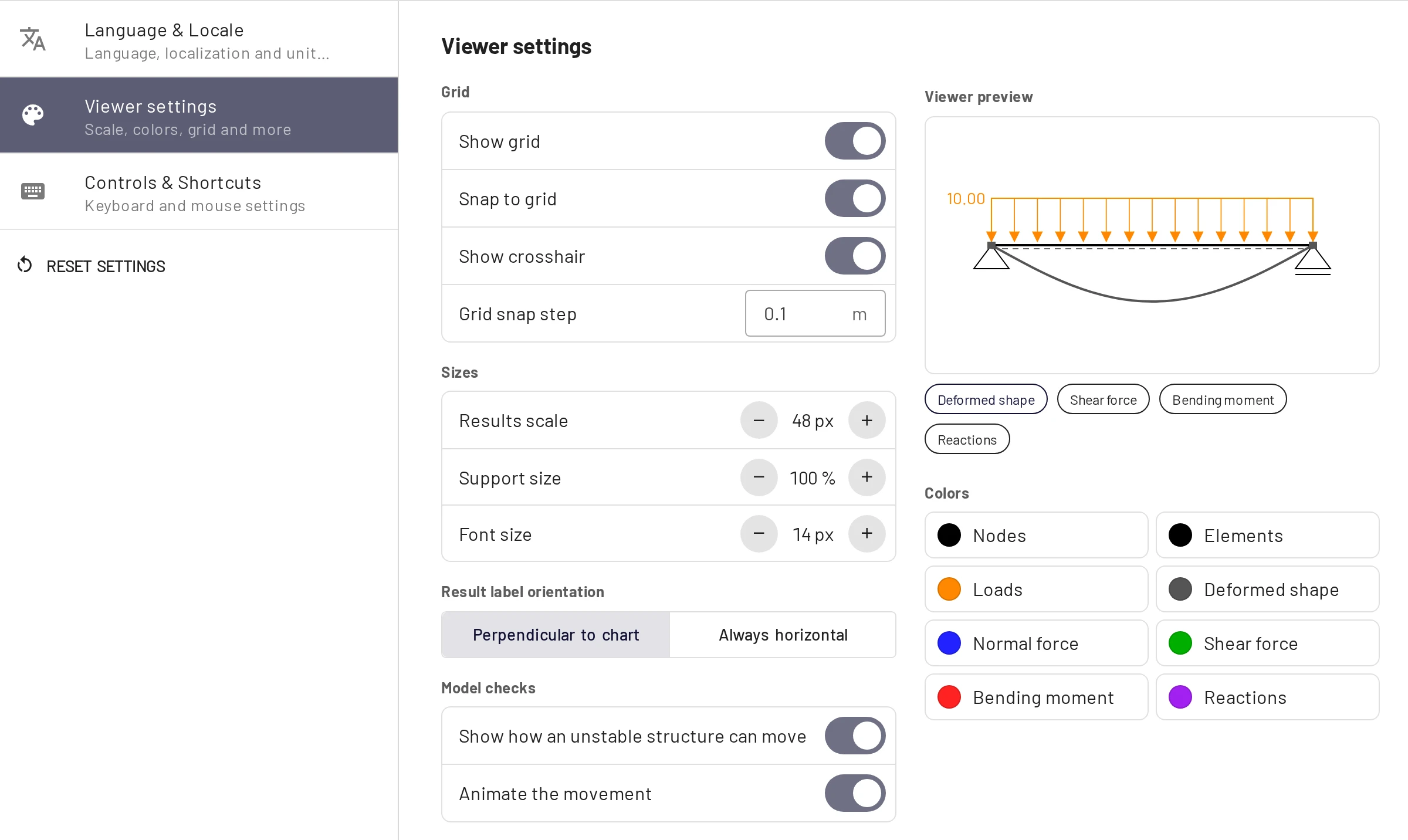
A Viewer preview next to the settings shows a small model that reacts to every change. The chips under it choose which result it shows, and clicking a colour switches the preview to that result.
Grid
- Show grid (G) draws the grid and the rulers.
- Snap to grid (S) makes nodes you place or drag snap to the grid step.
- Show crosshair marks the pointer's position on the rulers, so you can read its coordinates (with a mouse only).
- Grid snap step is the spacing in the length unit: 0.1 m by default, or 0.5 ft in US units. When you switch between metric and US units, a step left at its default moves to the other system's default; a step you set yourself is kept.
Sizes
- Results scale (8–120 px, default 48) is the on-screen height of the largest diagram ordinate or deflection. Diagrams are scaled to their own maximum, so this is purely visual; change it when the plots are too big or too small.
- Support size (50–150 %) and Font size (10–20 px). Larger fonts help on a projector.
Result label orientation: Perpendicular to chart (labels follow the diagram) or Always horizontal.
Model checks
- Show how an unstable structure can move draws the dashed outline of a mechanism.
- Animate the movement swings it back and forth.
Colors: separate colours for nodes, elements, loads, the deformed shape, normal force, shear force, bending moment and reactions. Defaults: N blue, V green, M red, reactions purple, loads orange.
Controls & Shortcuts
Pan using sets which mouse button pans the canvas: Mouse wheel or right button (default), Mouse wheel, or Right button. The full list of shortcuts is on the Keyboard, mouse & touch page.
What is stored in your browser
Besides the settings, EduBeam keeps in the browser's local storage:
- the current model, saved after every change, so reloading the tab or reopening the app restores it;
- Recent structures: the last 10 models you cleared or replaced.
Both are per browser and per device, and clearing the site data removes them. Use Save project or Share model to keep a model or move it elsewhere.